Find a product
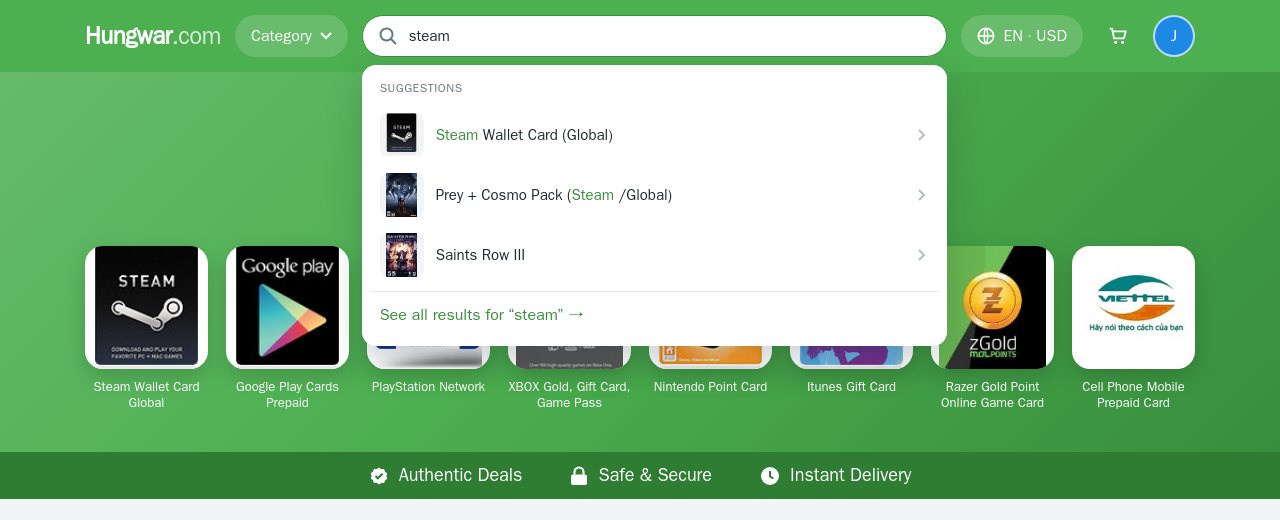
Type a game, card or service name into the Search game, key, card… box at the top of the page. Suggestions appear while you type, click one to open it.
- Click See all results or press Enter for the full result list.
- The popular cards (Steam, Google Play, PlayStation, Xbox…) are right at the top of the homepage.
- The Category button opens every category by platform, genre and card type.
Pick the region, denomination and quantity
On the product page:
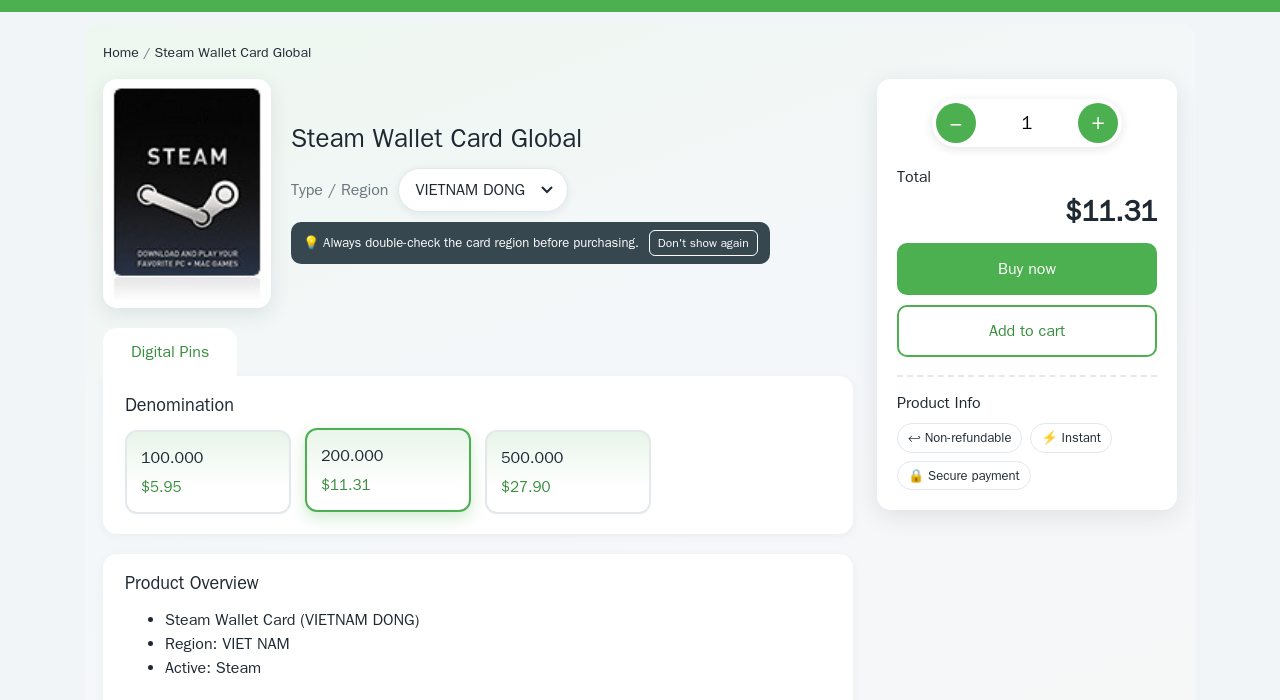
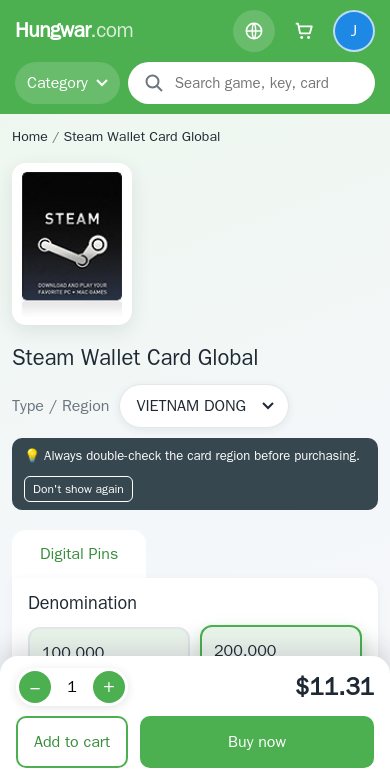
- Type / Region: choose the region of your account (VN, US, Global…). A card of another region cannot be redeemed.
- Denomination: click the value you want, the selected one gets a green border.
- Change the quantity with − / +, the total updates right away.
- Click Buy now to pay straight away, or Add to cart to buy something else too.
Check your cart
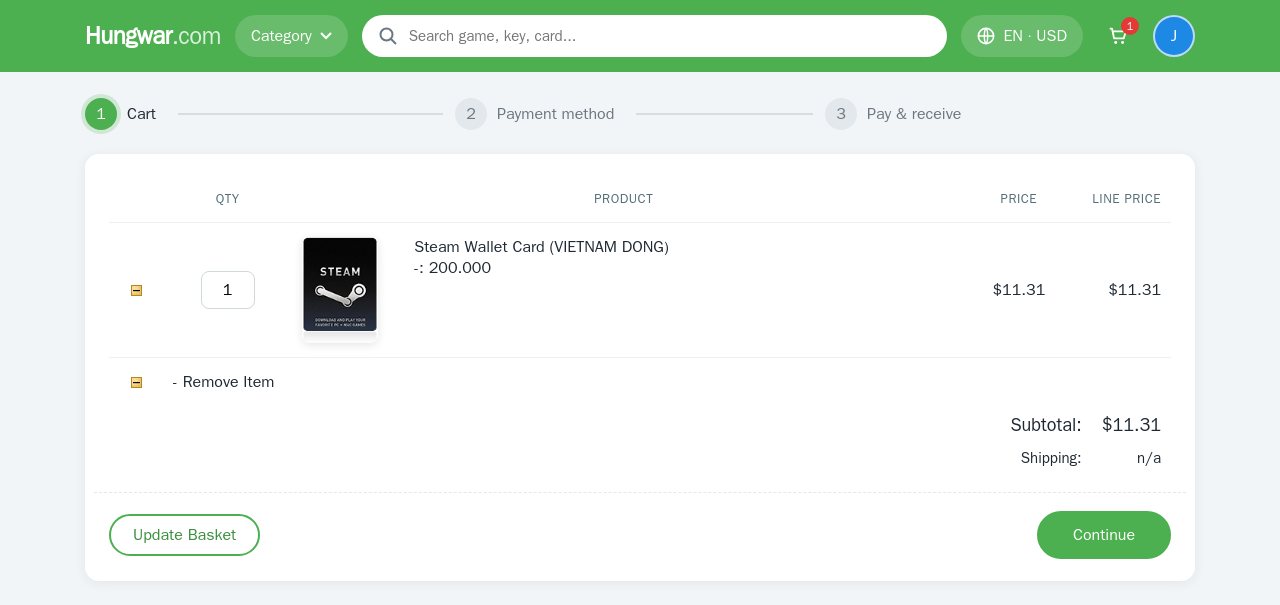
The cart lists the products, denominations, quantities and the total. Change a quantity and click Update Basket, or click the delete icon to remove an item.
Click Continue to choose how to pay.
Choose a payment method
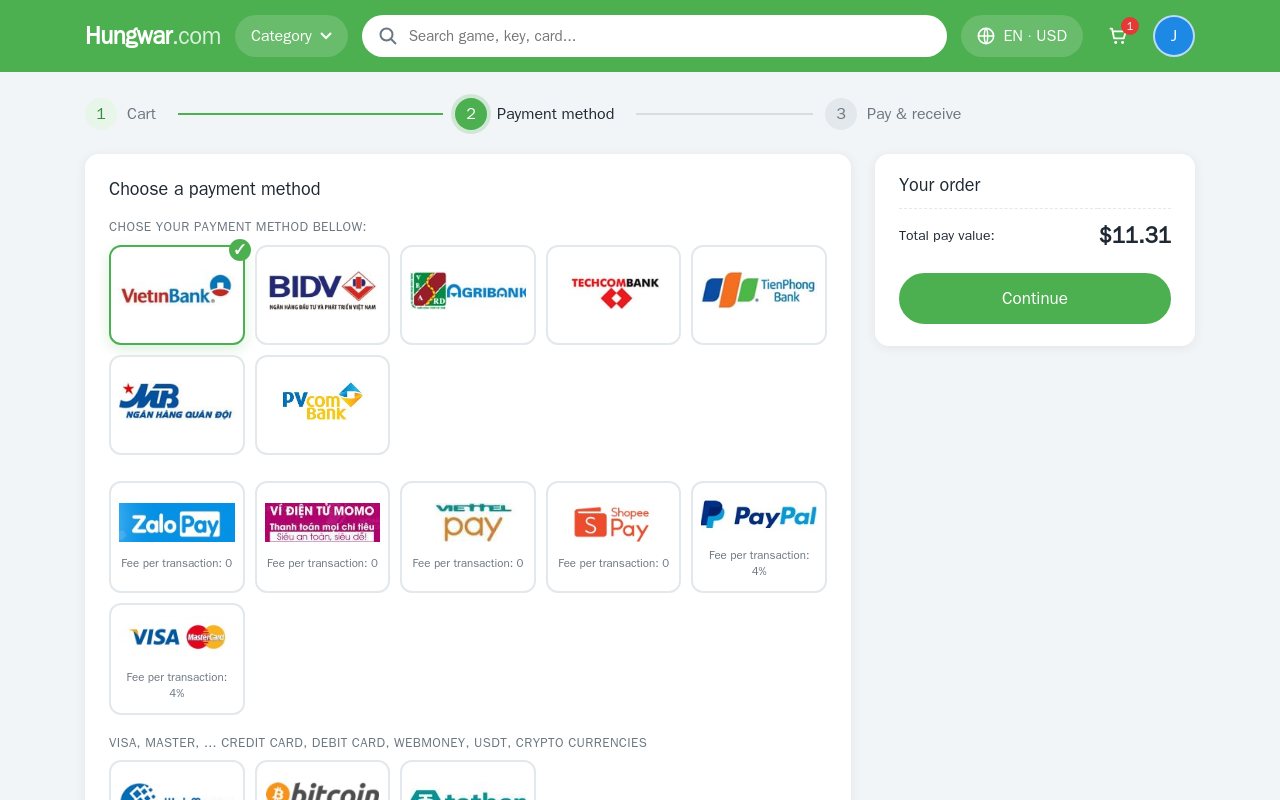
- Vietnamese banks, QR code, internet banking: VietinBank, BIDV, Agribank, Techcombank, TPBank, MB, PVcomBank.
- E-wallets and cards: MoMo, ZaloPay, ShopeePay, Viettel Money; PayPal and VISA / Mastercard for international cards.
- Crypto: WebMoney, Bitcoin, USDT.
Click the tile of your bank / wallet (it gets a green ✓), add a note if you like, then click Continue.
Transfer with the right reference
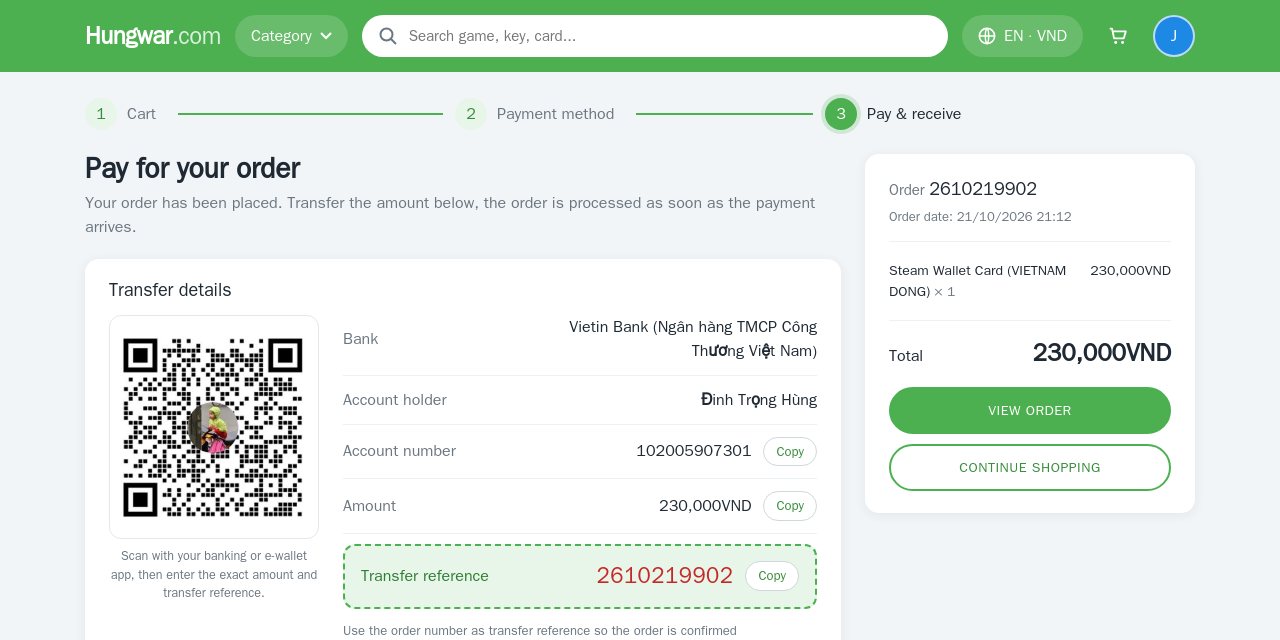
For bank transfers and e-wallets the payment page shows everything you need: bank, account holder, account number, amount and the transfer reference (your order number).
- Scan the QR code with your banking / wallet app, or click Copy to paste the account number, amount and reference.
- Transfer the exact amount with the order number as reference so the order is confirmed automatically.
- Step by step guide has instructions for each bank / wallet.
Get your code / key
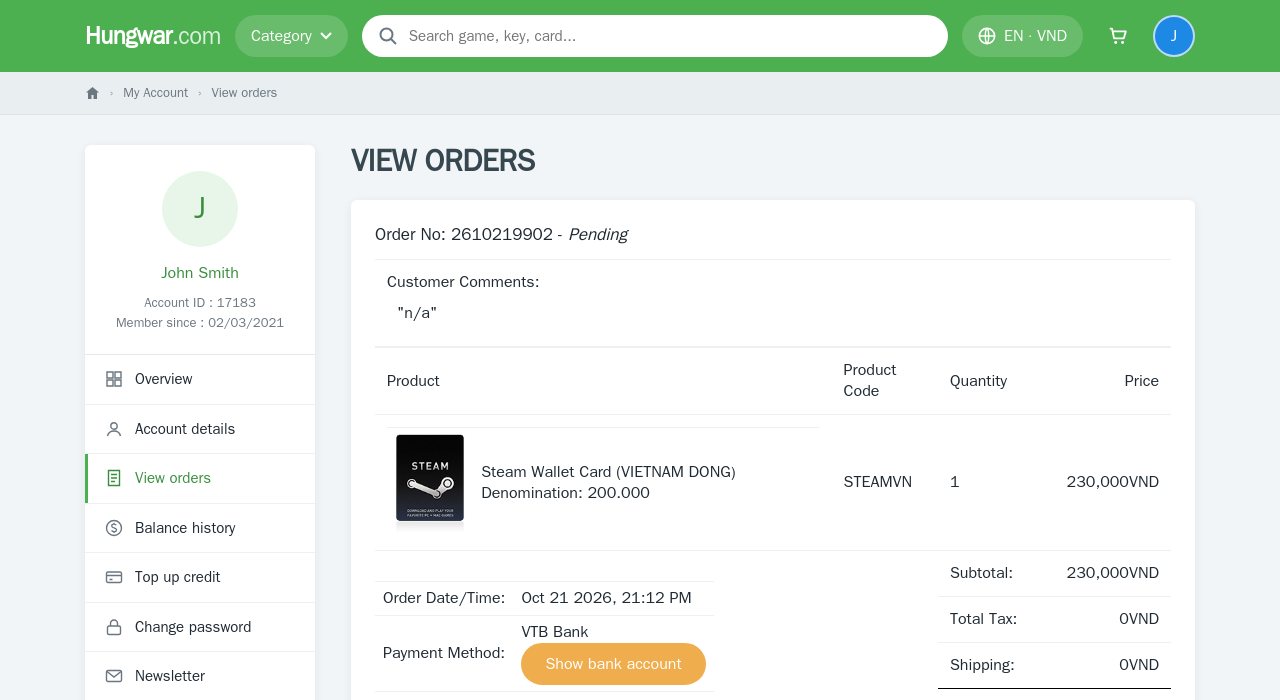
As soon as Hungwar receives the payment, the order becomes Completed and you get an email.
- Open My Account › View orders and the order you bought.
- Click Show key to see your card code / CD key.
More: How to get your CD Key, Game Card, Prepaid Card after payment.
Account, language and phones
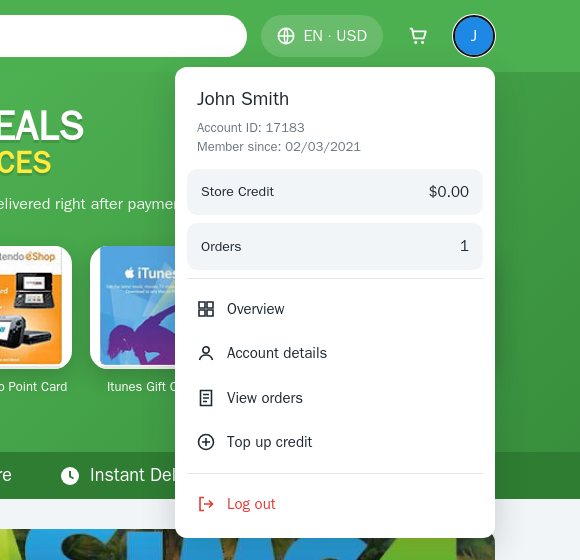
- Click your avatar at the top right for your store credit, orders, account details, order history and top-up.
- The EN · USD button switches the language (English / Tiếng Việt) and the currency shown (USD / VND).
- Everything works on phones too; the total and Buy now button stay at the bottom of the screen.
Need help?
Message Hungwar Store on Messenger or write to support@hungwar.com, we answer as fast as we can.